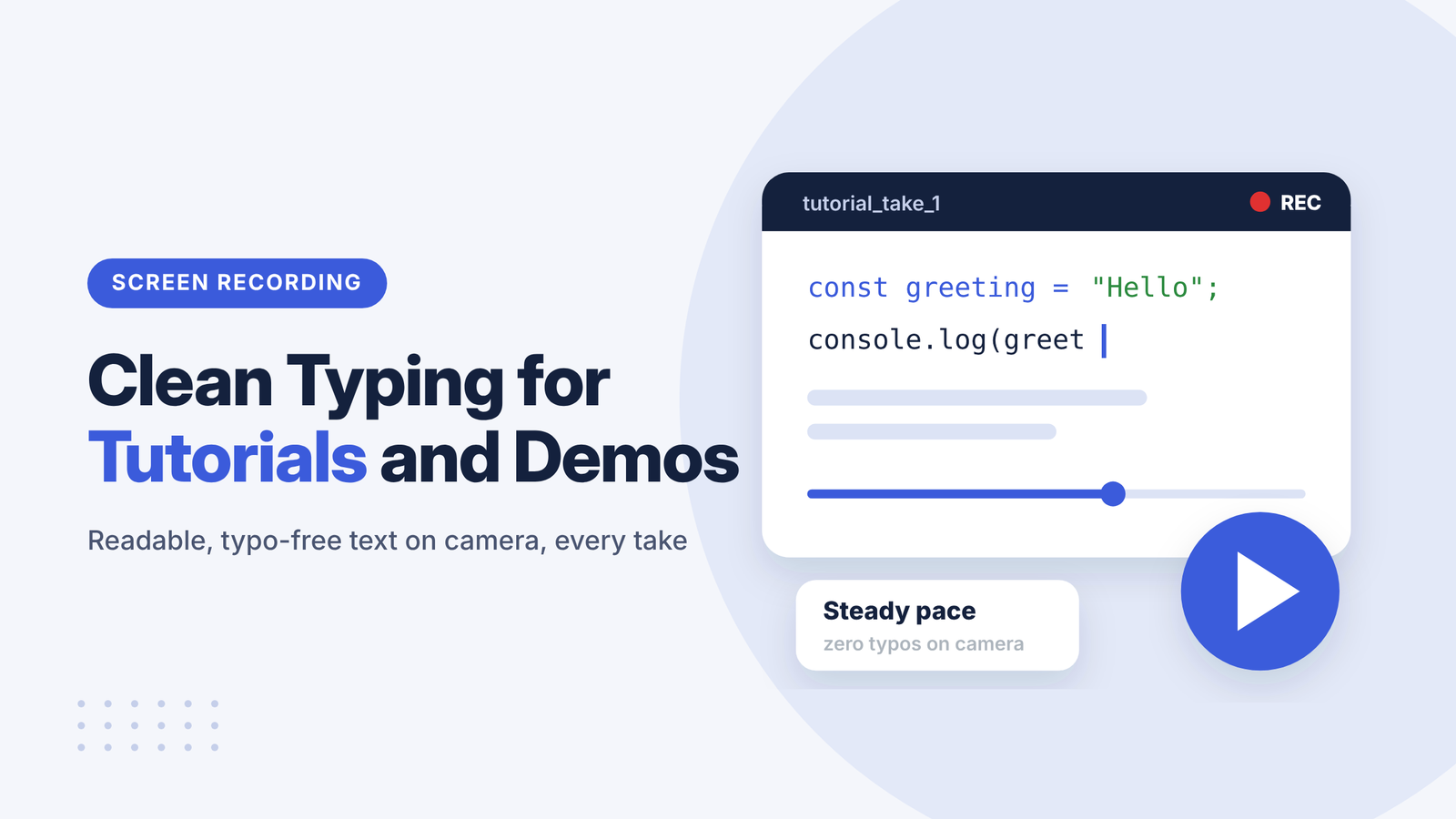
You hit record. The tutorial starts well. Then you type “consloe.log,” backspace three times, mutter something, and watch your viewers’ attention drain out of the video in real time. Every screencaster has a take like this. Most have dozens.
Typing on camera is strangely hard. You’re thinking about what to say, where the cursor is and whether the audio is clipping, all while your fingers try to spell correctly. The result is usually a choice between two bad options: live typing full of fixes, or a sudden wall of pasted text that appears out of nowhere and leaves viewers scrambling to catch up. There’s a better middle ground, and it starts with understanding how people actually watch these videos.
Why On-Screen Typing Makes or Breaks a Tutorial
Viewers learn by following along. When text appears too fast, they pause and rewind. When it appears too slowly or with constant corrections, they skip ahead or leave. Instructional content lives or dies on pace.
This is where a typing tool earns its place in a recording setup. Phrasly’s Human Autotyper takes text you’ve already prepared and types it into Google Docs, Slides or most web editors at a steady speed you choose, from 30 to 240 WPM. You can set the typo rate to zero for a clean take, or leave a small amount if you want the demo to feel live. Either way, your hands are free to move the mouse, point at things and focus on narration.
What Viewers Expect From Instructional Video in 2026
The appetite for video tutorials is enormous. Wyzowl’s 2026 State of Video Marketing report found that 91% of businesses use video as a marketing tool, and 96% of people have watched an explainer video to learn more about a product or service. When asked how they’d most like to learn about a product, 63% picked a short video.
TechSmith’s 2024 Video Viewer Study, which surveyed 929 people across six countries, adds more detail on the teaching side. It found 83% of people prefer to consume instructional or informational content through video, and two thirds watch at least one instructional video every week. The most popular length for instructional video was 10 to 19 minutes, though 60% said they wouldn’t sit through anything 20 minutes or longer.
That’s a lot of people watching, and very little patience for wasted seconds.
The Speed Gap Between Typing and Reading
Here’s the number that changed how I think about recording. The average adult reads English silently at about 238 words per minute for non-fiction, according to Marc Brysbaert’s 2019 meta-analysis of 190 studies in the *Journal of Memory and Language*. The average computer user types at roughly 52 WPM (Dhakal et al., CHI 2018).
Average typing speed vs reading speed for adults. Sources: Dhakal et al., CHI 2018; Brysbaert, Journal of Memory and Language, 2019.
Your viewer can read more than four times faster than you can type. So while you’re typing live, they’re mostly waiting. That’s fine for short lines, where watching text build helps people track what’s happening. For anything longer, live typing becomes dead air.
Matching the Pace to the Content
The fix isn’t to always type faster. It’s to choose a speed that fits what’s on screen:
- Short commands or a single line of code: type it visibly so viewers see exactly what changed. Around 40 to 60 WPM works.
- Paragraphs of explanatory text: speed it up. Something closer to 100 WPM or more keeps the video moving without turning it into a sudden paste.
- Large blocks the viewer doesn’t need to read: cut, paste, or speed up the clip in editing.
Captions follow a similar logic
Subtitle guidance has long worked the same way. BBC research in 2015 cited Ofcom guidance that subtitles shouldn’t exceed 160 to 180 words per minute, with around 175 rated as about right by viewers. On-screen text that you want people to actually read should stay comfortably under those limits.
Five Ways to Get Clean Typing on Camera
Here are the approaches most creators use, roughly from least to most polished.
| Method | Looks natural? | Typo risk | Effort |
| Live typing | Yes | High | Low prep, many retakes |
| Paste the text | No, text jumps in | None | Very low |
| Type, then cut mistakes in editing | Mostly | Low after edits | High editing time |
| Speed up typing clips in post | Somewhat | Medium | Medium |
| Auto-type prepared text | Yes | Set by you | Low |
1. Write the script first
Almost every screencasting guide gives this advice, and it’s right. Write out what you’ll type and what you’ll say. If you need a starting draft for the narration, an AI script generator can give you an outline you then rewrite in your own words.
2. Keep it in plain text
Prepare the exact characters you’ll type. Phrasly’s auto typer accepts plain text only, so add bold, headings or links after the run. Watch out for Google Docs autocorrect too, which can change quotes and lists mid-recording.
3. Do a test run off camera
Type a 100-word sample at your chosen speed and watch it back. Does it feel too slow? Too fast? Adjust once, then record.
4. Keep your hands off the document
With most auto typers, clicking in the document or switching tabs during a run slows or stops typing. Narrate, point with the cursor elsewhere, and let it finish.
5. Segment and signal
Research on multimedia learning supports two simple habits. Breaking content into short segments improves retention and transfer (Rey et al., *Educational Psychology Review*, 2019). Signaling, such as highlighting or zooming on the important part, improved learning outcomes in a meta-analysis of 29 studies (Alpizar, Adesope and Wong, 2020). Type one step, pause, highlight it, then move on.
Live Classes and Demos Need the Same Care
Everything above applies to live teaching too, maybe more so. A teacher typing in front of 30 students can’t edit out mistakes. Neither can a sales engineer running a product demo on a call. Preparing the text and letting a tool type it at a readable pace lets you keep your eyes on the room instead of the keyboard.
A quick note on honesty, though. An auto typer is a presentation tool. It’s great for showing how text builds up. It isn’t a way to pass off someone else’s work as your own, and it shouldn’t be used to fake a writing process for an assignment.
Pace Is the Real Production Value
Clean on-screen typing doesn’t need expensive gear. It needs a script, a sensible speed and a way to avoid the stumble-backspace-sigh cycle that ruins good takes. Viewers read about 238 words a minute and you type around 52, so the job is to close that gap in a way that still lets people follow along.
Type short commands visibly. Speed up longer text. Break the lesson into small steps and highlight what matters. Do that, and your tutorials will feel calmer, clearer and far easier to learn from, which is exactly what the 83% of people who prefer video for learning are hoping for when they press play.